Custom Hotkeys
Change Pulse Check keyboard shortcuts, see the defaults, fix conflicts, and learn where custom hotkeys work in Navisworks.
Navisworks Manage 2025–2027 · Updated
Open the hotkey settings
Hotkeys let you review clashes in Pulse Check from the keyboard: change status, update tests, and switch display settings without reaching for the mouse.
Open Account & Options
Use any of these:
- Click Account Settings on the BIMPulse ribbon tab.
- Click Settings in the Pulse Check header.
- Press Ctrl+, while Pulse Check is active.
Choose Hotkeys
The list shows each Command, its Default and Current keys, and a Status column that flags conflicts. Press Ctrl+F in the list to search it.
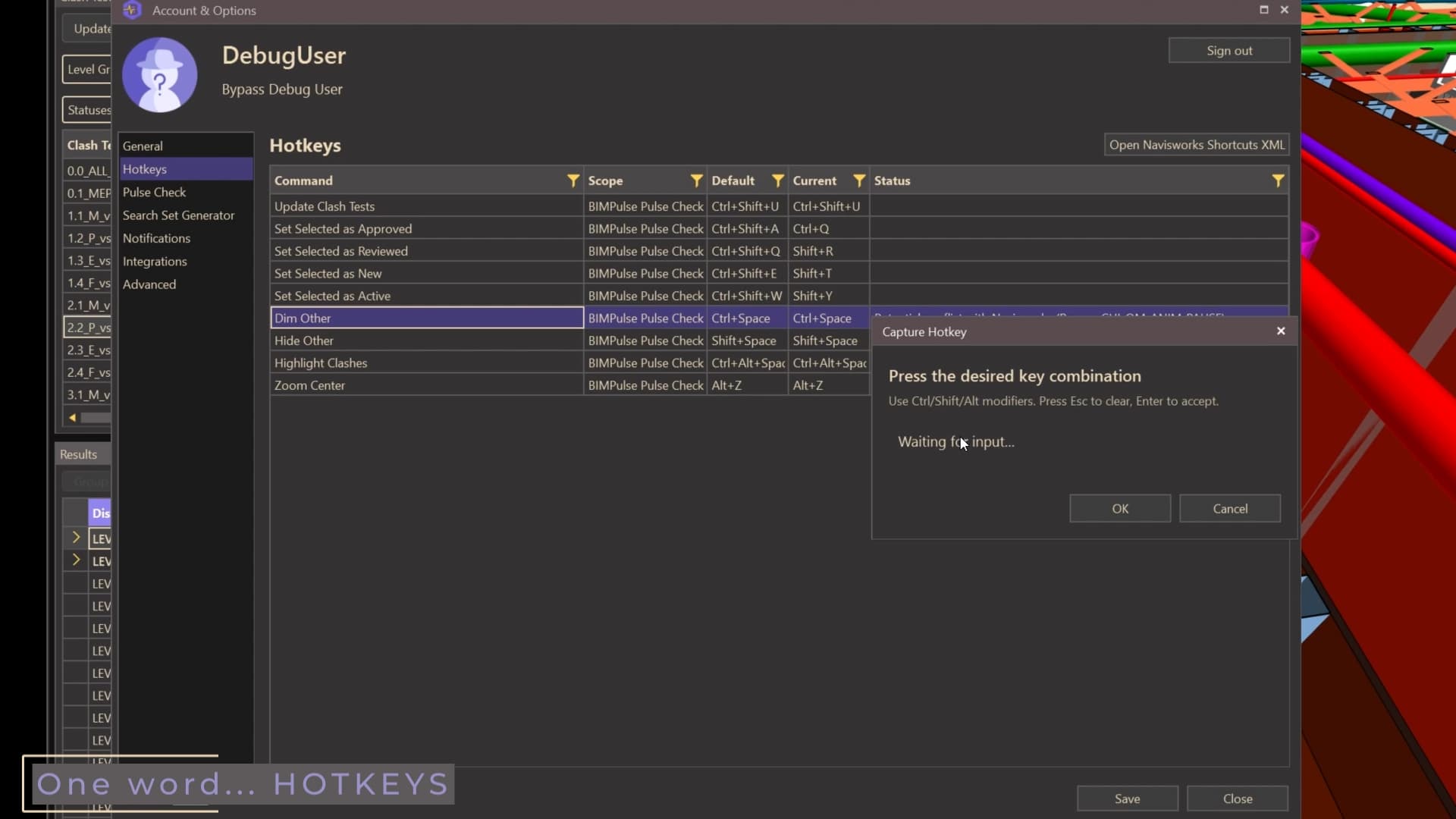
Default hotkeys
| Command | Default key |
|---|---|
| Update Clash Tests | Ctrl+Shift+U |
| Set Selected as Approved | Ctrl+Shift+A |
| Set Selected as Reviewed | Ctrl+Shift+Q |
| Set Selected as New | Ctrl+Shift+E |
| Set Selected as Active | Ctrl+Shift+W |
| Dim Other | Ctrl+Space |
| Hide Other | Shift+Space |
| Highlight Clashes | Ctrl+Alt+Space |
| Zoom Center | Alt+Z |
Highlight Clashes switches Highlight All on and off. The defaults use Ctrl+Shift because Navisworks already uses several Ctrl shortcuts, such as Ctrl+D, Ctrl+F, and Ctrl+T.
Change a hotkey
Right-click the command and choose Edit Hotkey
The Capture Hotkey window opens.
Press the key combination you want
Hold Ctrl, Shift, or Alt and press a key. The window shows what it captured.
Press Enter or click OK
The new key is saved right away; you don't need to click Save. Click Cancel to keep the old key.
To go back to the original key, right-click the command and choose Reset to Default Hotkey.
After a change, the page shows a reminder that hotkey changes need a Navisworks restart to take full effect.
Conflicts
The Status column warns you about keys that may collide:
- Conflicts with another BIMPulse hotkey: two Pulse Check commands share the same key.
- Potential conflict with Navisworks: the key may already be a Navisworks shortcut. The Navisworks command is named in brackets.
BIMPulse doesn't block a conflicting key, so pick a different one when you see either warning.
Where hotkeys work
- Pulse Check hotkeys work only while Pulse Check is open.
- While the Pulse Check window is active, your custom keys apply.
- While the main Navisworks window is active, for example after clicking in the 3D view, Pulse Check commands respond to their default keys.
Changed a key?
Click into the Pulse Check window before using it. From the main Navisworks window, use the default keys in the table above.
Keys you can’t change
| Key | What it does in Pulse Check |
|---|---|
| ↑ / ↓ | Moves up and down the list you used last, Clash Tests or Results. |
| ← / → | Collapses or expands the selected group in the Results pane. |
| Ctrl+, | Opens the Pulse Check settings. |
Other display settings, such as Apply to All, Zoom Clash, and Section Clash, don't have hotkeys.
Where hotkeys are saved
Your hotkeys are saved for your Windows user in %APPDATA%\, so they follow you to every project. Only the keys you've changed are stored there. Each person on a shared computer has their own.
For what each command does, see Pulse Check Clash Review.
Related guides
Pulse Check Clash Review
Review clash results in Pulse Check: update and compact tests, change status, save viewpoints, and control dimming, highlighting, and zoom.
Clash Grouping & Renaming
Group Navisworks clashes by level, grid, proximity, and more, auto-group after test updates, and rename clashes with a naming template.
Clash Sectioning
Section the Navisworks view around each clash, set side and slab buffers, and adjust the section box with on-screen handles.
Still stuck, or spotted something out of date? Contact support and tell us which guide you were using.