Clash Test Generator
Build every Navisworks clash test from one matrix, update existing tests without losing results, and import tests from a Clash Detective XML.
Navisworks Manage 2025–2027 · Updated
Before you start
The Clash Test Generator builds Clash Detective tests from a matrix: pick what goes on the rows and columns, click the pairs you want, and generate every test in one pass. It can also bring in the tests from a project you've already set up.
Before you open it, make sure:
- You're signed in to BIMPulse with an active license.
- Your models are appended, and the Navisworks file has been saved at least once.
- The sets you want to clash exist. You can clash saved search sets and selection sets, whole files, or BIMPulse Model Collections. The Search Set Generator can create the sets and Model Collections for you.
Open the Clash Test Generator
On the BIMPulse ribbon tab, click Clash Generator. Only one Clash Test Generator window can be open at a time, and it closes by itself if you open a different file.
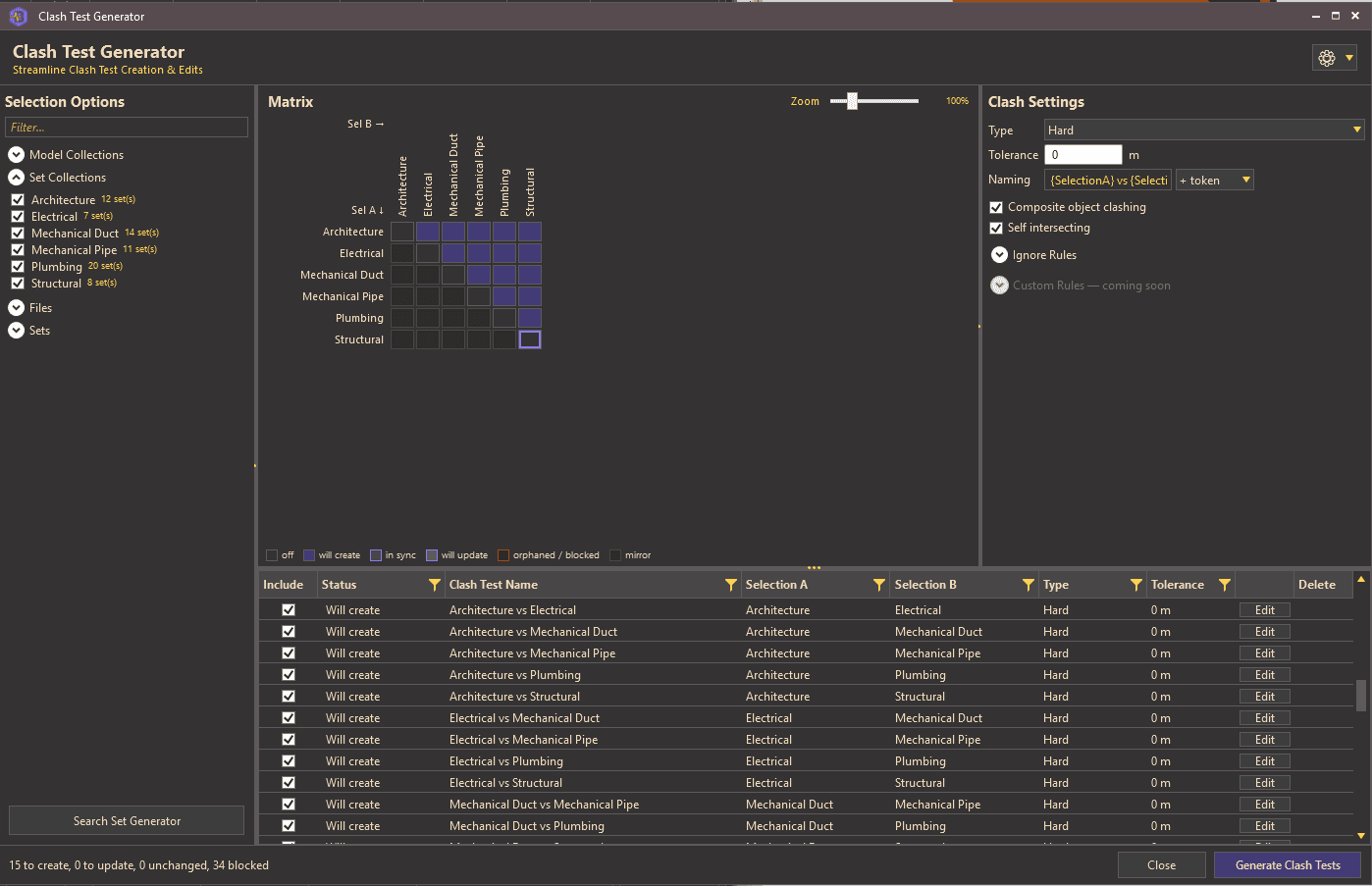
- Selection Options (left): the items you can put on the matrix.
- Matrix (middle): one cell for every pair of items.
- Clash Settings (right): the type, tolerance, and naming used for new tests.
- The test list (bottom): every test the matrix will create or update.
- The footer: a running summary, plus Close and Generate Clash Tests.
The ⚙ button in the top-right corner holds the import, export, and advanced options described below.
Choose your rows and columns
Selection Options lists everything in the file you can clash, in four groups. Type in the Filter… box to narrow the list.
| Group | What it contains |
|---|---|
| Model Collections | File groupings you set up in the BIMPulse Search Set Generator, such as all the mechanical models. |
| Set Collections | Folders in your Sets window. Picking a folder clashes every set inside it, and each set keeps its own name so clash grouping still works per set. |
| Files | Each model file appended to the project. |
| Sets | Every saved search set and selection set. |
Tick an item to add it to the matrix. By default, one tick puts the item on both the rows and the columns. The first time you open the generator on a file, every usable Model Collection is ticked for you.
An item you can't tick is empty: a Model Collection that matches none of the appended files, or a folder with no sets in it. If you add sets while the window is open, choose Refresh selection sources from the ⚙ menu.
Different items on rows and columns
To clash one list of items against a different list, choose Advanced: separate row / column sets from the ⚙ menu. Each item then gets two checkboxes, Row (Selection A) and Column (Selection B). In this mode, Swap rows ↔ columns flips the two lists.
Build the matrix
Rows are Selection A (Sel A ↓) and columns are Selection B (Sel B →). Each cell is one clash test.
- Click a cell to turn that test on or off.
- Click a row or column header to switch the whole line. If any cell in the line is on, they all turn off; otherwise they all turn on.
- Double-click a cell to turn it on and open its own settings (see below).
- Hover over a cell to see the pair, its type and tolerance, and what Generate will do with it.
Each pair only makes one test, so Mechanical vs. Electrical and Electrical vs. Mechanical are the same test. The second cell of a pair is shown as a mirror, and clicking it changes its twin.
Cells on the diagonal pair an item with itself and become self-intersect tests. You can only turn them on while Self intersecting is ticked in Clash Settings.
The legend under the matrix explains the cell colors: off, will create, in sync, will update, orphaned / blocked, and mirror. A cell with a small corner triangle has its own settings. Use the Zoom slider (50% to 250%), or hold Ctrl and scroll, to resize the matrix.
Clash Settings
These settings apply to every cell that doesn't have its own settings.
| Setting | What it does | Default |
|---|---|---|
| Type | The Clash Detective test type: Hard, HardConservative, Clearance, or Duplicate. | Hard |
| Tolerance | The clash tolerance, in the file's units. The unit is shown next to the box. | 0 |
| Naming | The template for test names. Use + token to add a token to the end. | {SelectionA} vs {SelectionB} |
| Composite object clashing | Reports one clash per pair of composite items, like the Navisworks default. | On |
| Self intersecting | Allows diagonal cells, where an item is clashed against itself. | On |
| Ignore Rules | The Clash Detective rules to apply to each test, such as Items in same file. | None ticked |
Naming tokens
| Token | Becomes |
|---|---|
{SelectionA} | The row item's name. {SelA} works too. |
{SelectionB} | The column item's name. {SelB} works too. |
{Tolerance} | The tolerance with its unit, for example 0.05 ft. |
{Type} | The test type, for example Hard. |
Tokens aren't case-sensitive. Anything that isn't a token is kept as you typed it, and an empty template falls back to the default.
Ignore rules come from your file
An ignore rule can only be ticked once a test in the file already uses it. If a rule is greyed out, tick it once on any test in Clash Detective, then reopen the Clash Test Generator.
Change settings for one test
Double-click a cell, or click Edit on its row in the test list, to open Edit Clash Test. Anything you leave empty or set to (default) follows Clash Settings.
- Name: a fixed name for this test. Leave it empty to use the naming template.
- Type and Tolerance: override the defaults for this test.
- Composites: On, Off, or (default).
- Self-intersect A and Self-intersect B: also clash each side against itself.
Click Apply to keep your changes. They're written to Navisworks when you click Generate Clash Tests.
Review and generate
The test list shows every test the matrix plans, with columns for Include, Status, Clash Test Name, Selection A, Selection B, Type, Tolerance, and Delete. Unticking Include is the same as turning off the matrix cell. You can also type a new name for a test straight into the list.
| Status | What Generate will do |
|---|---|
| Will create | Add a new clash test. |
| Will update | Change an existing test to match the matrix. Will update (rename) also renames it. |
| In sync | Nothing. The test already matches. |
| Blocked | Nothing, because something the test needs is missing, such as a saved set that was deleted or a Model Collection whose files aren't appended. |
| Orphaned | Nothing unless you tick Delete. This is a test BIMPulse generated earlier whose cell is now off. |
| Existing | Nothing. This test wasn't made by the matrix. |
Check the summary
The footer counts what will happen, for example 4 to create, 2 to update, 10 unchanged.
Click Generate Clash Tests
BIMPulse asks you to confirm how many tests it will create and update, and how many orphaned tests it will delete. Updates keep each test's existing results, comments, and statuses.
Read the result
When it finishes, BIMPulse reports how many tests it created, updated, skipped, and deleted. You can cancel while it's writing; tests already written are kept.
New tests are added at the top level of the Clash Detective test list. An update can change a test's name, type, tolerance, composite setting, selections, self-intersect options, and ignore rules.
Generating doesn't run the tests
The Clash Test Generator creates and updates tests but doesn't run them. Run them with Update Tests in Pulse Check, or from Clash Detective.
If nothing has changed, BIMPulse tells you everything is already in sync. Your matrix is saved in the Navisworks file when you generate and when you close the window, so save the file to keep it for next time.
Tests that already exist
- Tests the matrix made before: if you turn their cells off, they become Orphaned and are kept. Tick Delete on a row to remove that test on the next Generate.
- Tests you made yourself: they show as Existing and are never deleted. Renaming one in the test list renames it in Navisworks straight away.
- Same name: if exactly one existing test already has the name a cell would generate, the matrix takes that test over and updates it to match, rather than creating a second copy.
Import and export
All three options are in the ⚙ menu.
Import from Clash Detective XML
Import from Clash Detective XML… reads the clash tests from an XML file exported from Clash Detective, such as one from a previous project, and adds them to your matrix. Pairs already in the matrix are skipped, and BIMPulse shows a report of what it imported and skipped.
- Read: each test's name, type, tolerance, composite setting, the saved sets on each side, and self-intersect.
- Not read: selections that aren't saved sets (those tests are skipped with a note), ignore rules, and results or statuses.
Export and import matrix settings
Export matrix settings… saves your rows, columns, cells, and Clash Settings to a .json file. On your next project, use Import matrix settings… to load it. Importing replaces the current matrix, and tolerances are converted to the new file's units.
Related guides
Pulse Check Clash Review
Review clash results in Pulse Check: update and compact tests, change status, save viewpoints, and control dimming, highlighting, and zoom.
Clash Grouping & Renaming
Group Navisworks clashes by level, grid, proximity, and more, auto-group after test updates, and rename clashes with a naming template.
BIMPulse Not Showing in Navisworks
What to check when the BIMPulse tab is missing from the Navisworks ribbon or its tool buttons stay greyed out.
Still stuck, or spotted something out of date? Contact support and tell us which guide you were using.